
Installation can be performed using the standard WordPress.org plugin installation and activation process or by uploading the .ZIP file obtained from this website to the ‘Plugins’ > ‘Add Plugin’ > ‘Upload Plugin’ menu in WordPress Admin. Once you have uploaded and installed the plugin on your WordPress site. Follow these instructions:
- Firstly, check that your Timezone settings are correct under ‘Settings’ > ‘General’. Whilst there, ensure ‘https://’ is used everywhere and not ‘http://’.
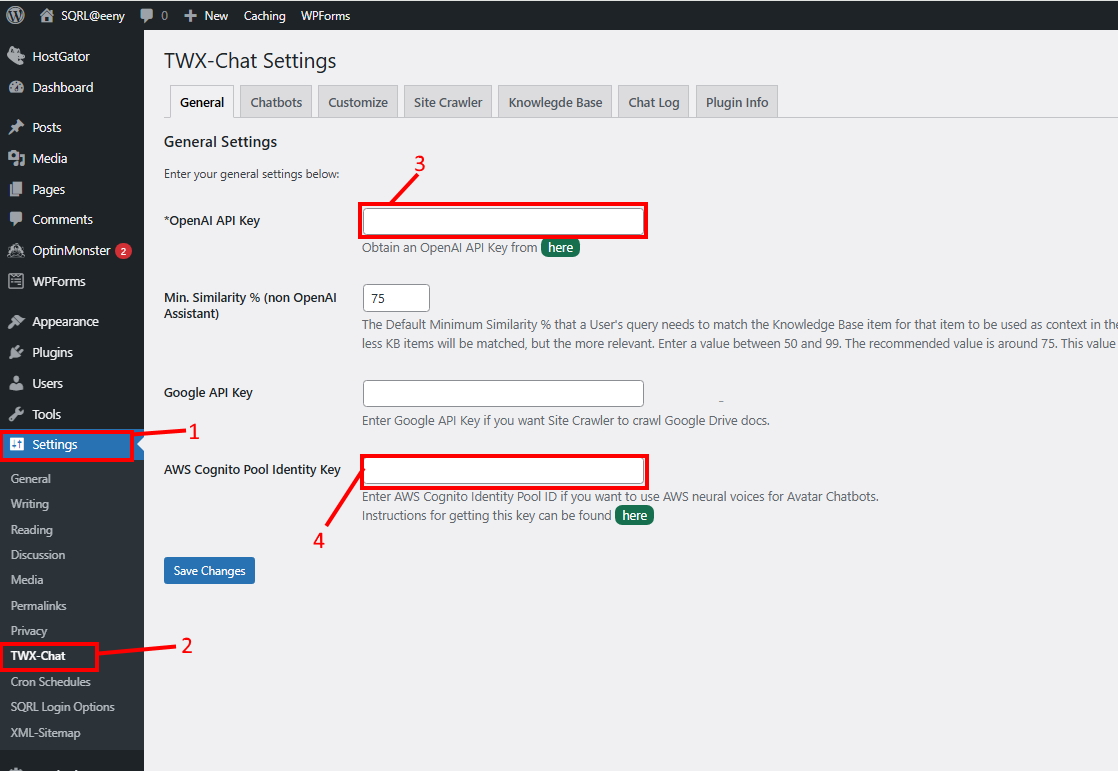
- Next, click ‘Settings’ (1) > ‘TWX-Chat’ (2). This will open the ‘TWX-Chat Settings’ page.

- Enter your ‘OpenAI API Key’ (3) which you can obtain from OpenAI portal (click the ‘here’ button below the field). This is used by your Chatbots for AI/LLM queries, and also the Site Crawler to create Embeddings in your Knowledge Base to train it with your content.
- NOTE: Ensure your OpenAI account has credit or is connected to a credit card otherwise errors may occur during Site Crawl or Chatbot operation.
- Enter your AWS Cognito Pool Identity Key (4)
- If you want your Avatar Chatbots to speak, and let’s face it, that’s probably why you got this plugin 🙂 you will need an account at Amazon’s AWS in order to use their Voice Services (aka Polly). Below are the instructions to set this up. It only takes about 5-10 minutes. As at July 2025, you get 1 million characters per month free for 12 months. Outside the Free tier it costs USD$16 per 1 million characters, which equates to roughly 150-180 thousand words per month. Heaps!
- Now let’s populate your Chatbot Knowledge Base with content from your website. Click the ‘Site Crawler’ tab (1) and select ‘Crawl Public Posts/Pages’ (2) then click ‘Save Changes’ (3). Note some options may not appear on your screen depending on your version of the Plugin. You can play around with other options later. More about the Site Crawler here.

- Next click the ‘Crawl Now!’ button (1) and click OK to confirm. This will start the Site Crawler. You will see the crawler Progress on the page (2).

- If you like, you can verify Knowledge got populated by checking under the ‘Knowledge Base’ tab and loading the Knowledge base. Further instructions for that here.
- Now let’s setup your first Chatbot. Click on the ‘Chatbots’ tab (1) and click ‘Create New Chatbot’ (2)

- Enter the Chatbot details. If you would like a Chatbot for your Front-Page we recommend these settings to start with, leave others as default/blank:
- Name: {any}. Name your chatbot anything you like, it is purely for display purposes only in your Chatbot list, eg: Front-Page Floating
- Chatbot Type: {Avatar}
- Avatar Character: {any}. Choose your character. Note you will need to ‘Download and Install’ the Character as it doesn’t exist on your server yet. Click the button to perform this action.
- Avatar Voice: {any}. Choose the Avatar’s voice. You can even Test each voice to see if you like it.
- Avatar Voice Speed: {any}. Speed of the Avatar’s voice selected above.
- Style: {floating}
- Floating Title: {a short title, eg: Chat with me!}
- Starting Comments/Greeting: {any}. Some text the Avatar will greet each user with, eg: My name is Charlie, ask me anything about XYZ
- Extra Instructions to AI Engine: {any}. These instructions to the AI will remain in place for the entire user conversation eg: Your name is Charlie and your objective is to help the user select the best product/service for them from the XYZ website catalogue.
- Knowledge Base or OpenAI Assistant? {knowledge_base}
- Use Streaming: {true}
- Show Flashcards: {true}
- Avatar Splash Image URL: {enter a URL to an image that will appear while the Chatbot is loading, ideally from your Media Library}
- Avatar Background Image URL: {enter a URL to an image on your website for the Avatar Background during conversation, it will be rendered as a stretched 3D object behind the Avatar}
Note: Further descriptions of each setting can be found under the Chatbot Settings page or click the (i)nformation icons under each setting. Click ‘Create Chatbot’ button when done.
- The new Chatbot will appear in the list

Click the Shortcut Copy button (1) and then click ‘Customize’ tab (2). - In the next screen….

Paste the Shortcode into the ‘Front Page Shortcode’ setting (1) and click ‘Save Changes’ (2). - Navigate to the Front-Page on your website and your Avatar Chatbot should appear in the bottom right. DONE! 🙂
Getting an Amazon AWS Cognito Identity Pool ID
- Visit https://aws.amazon.com/ and create a Free Tier account or login if you already have one. Note the Free Tier still requires a Credit Card. We recommend setting up MFA also for added login security.
- Login using your ‘root’ account/email.
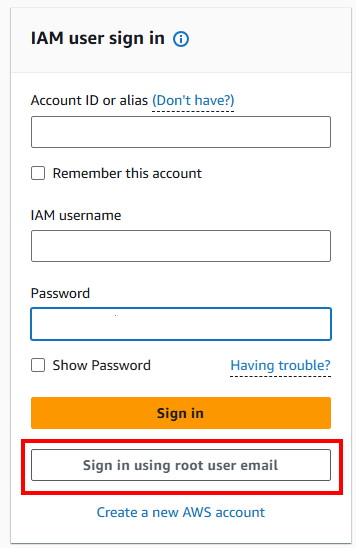
- After login, you will be taken to a screen as follows.
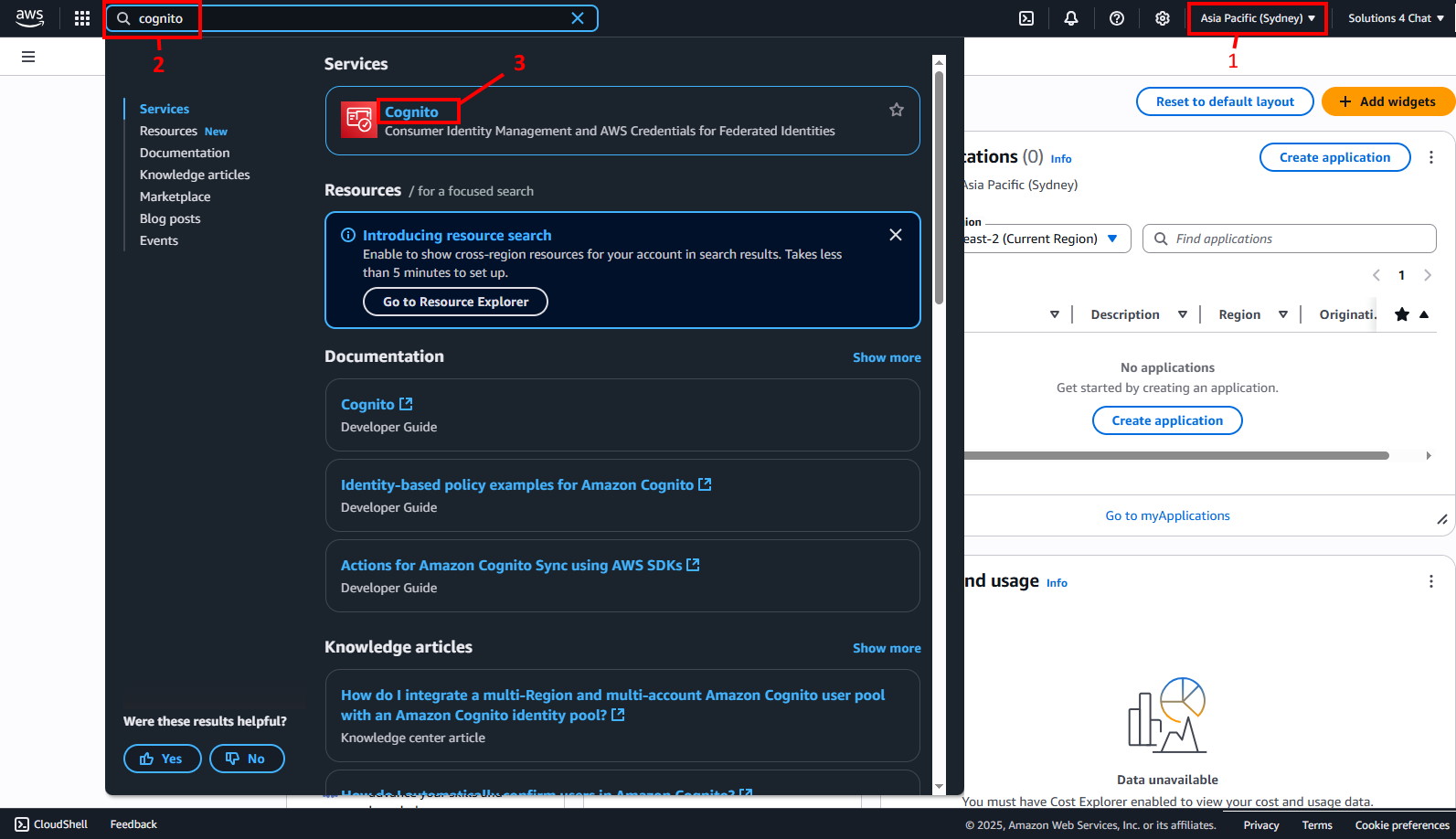
Ensure you are in the in the correct Region (1)
NOTE: You must select a valid region that supports Polly Neural voices.
Next enter ‘Cognito’ in the search bar (2), then select ‘Cognito’ from the Services (3) - You will see a screen like this
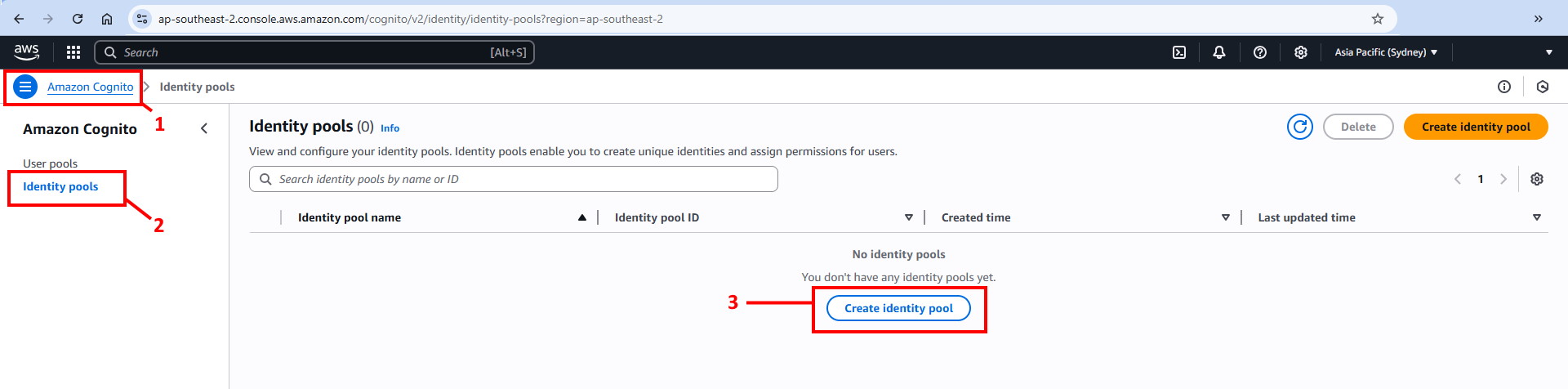
Click the top left menu (1) then select ‘Identity Pools’ (2), then ‘Create Identity Pool’ (3). - In the next screen
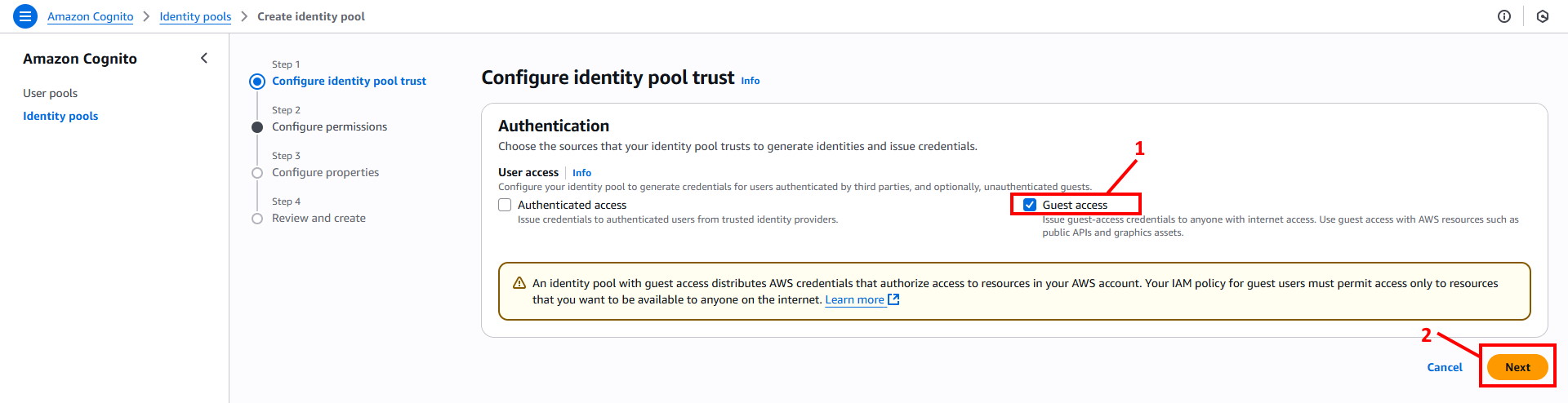
Click ‘Guest Access’ (1) and then ‘Next’ (2) - In the next screen
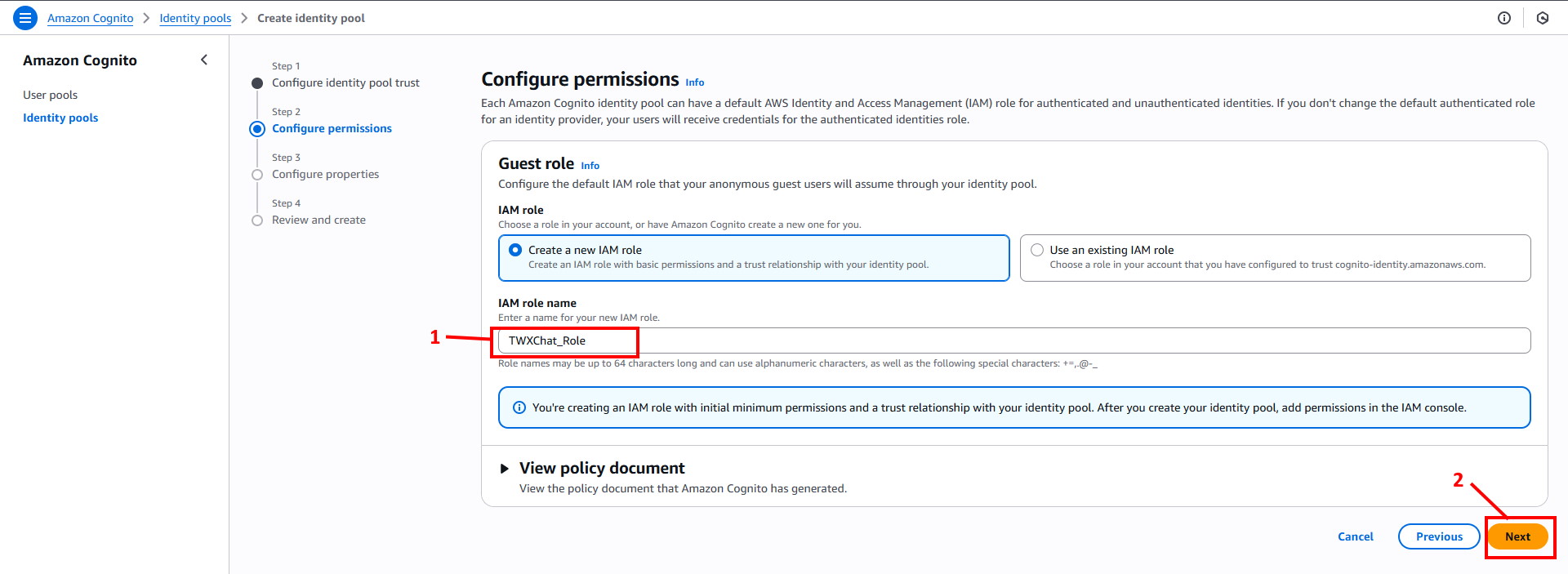
Enter IAM Role Name ‘TWXChat_Role’ (1) and then ‘Next’ (2). - In the next screen
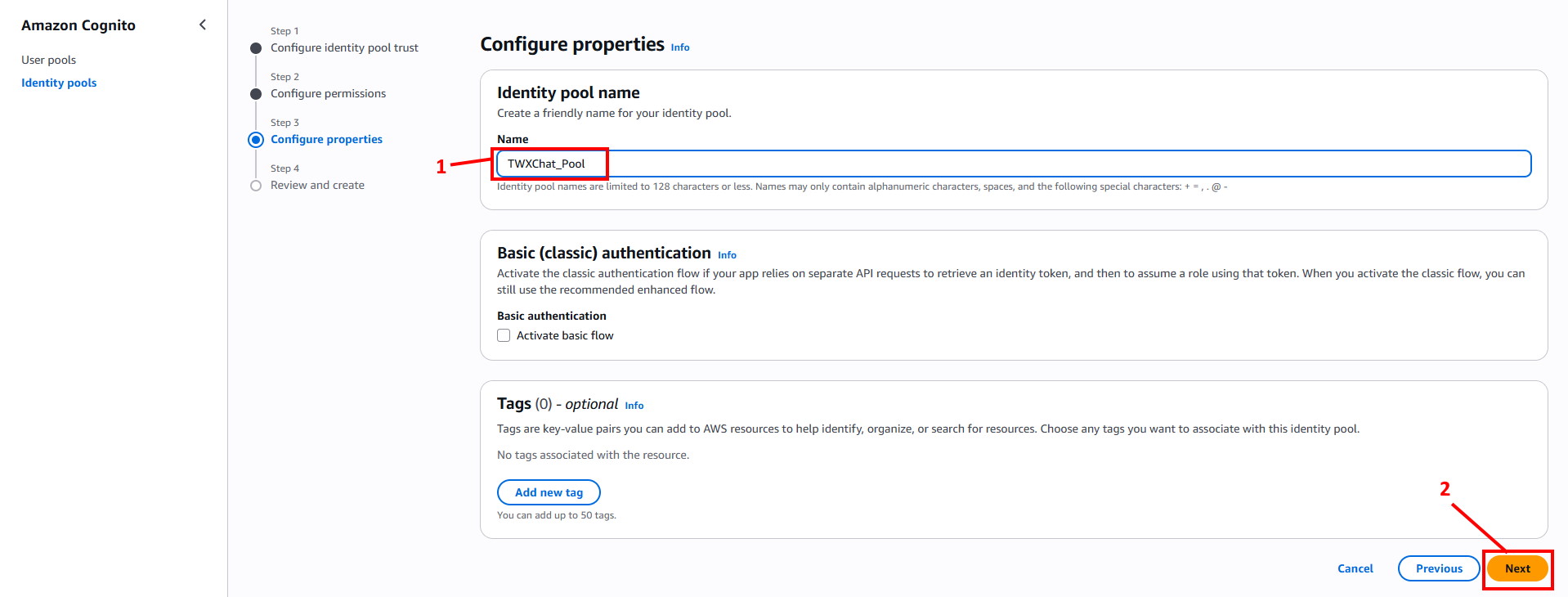
Enter the Identity pool name ‘TWXChat_Pool’ (1) and click ‘Next’ (2). - In the next screen
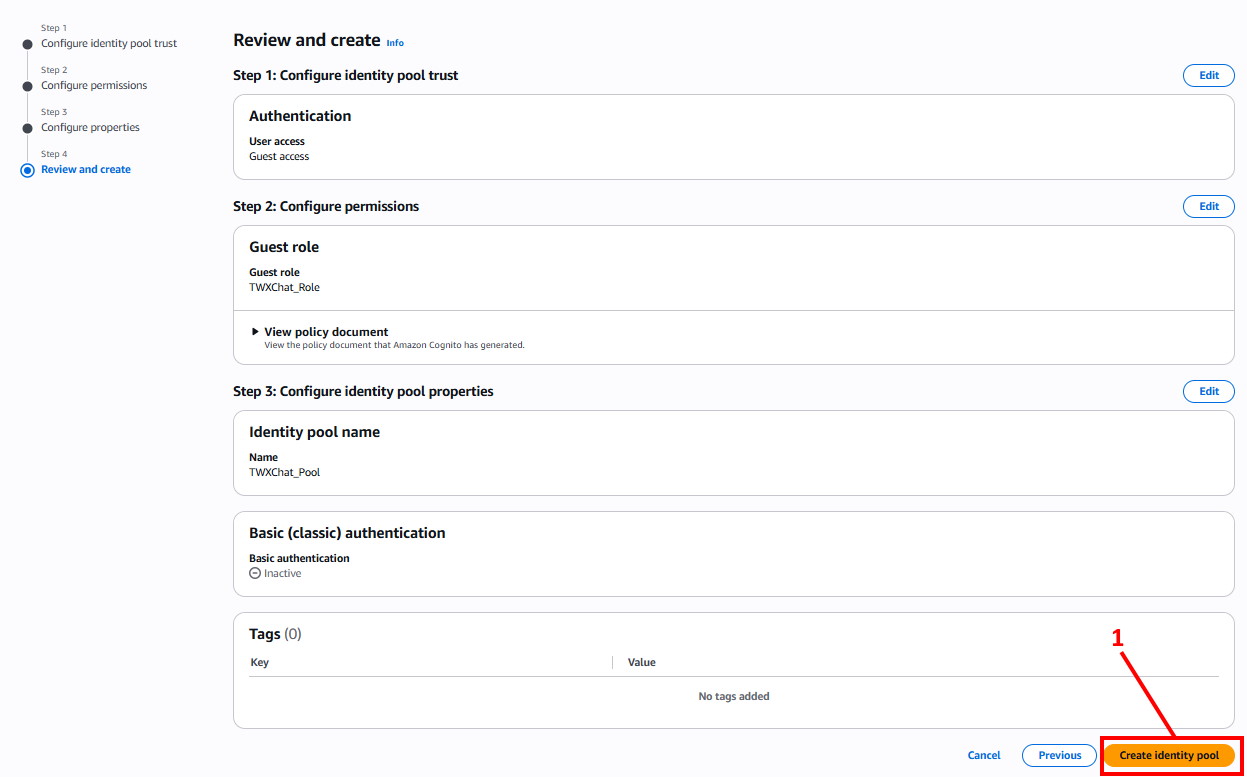
Click ‘Create Identity Pool’ (1). - In the next screen
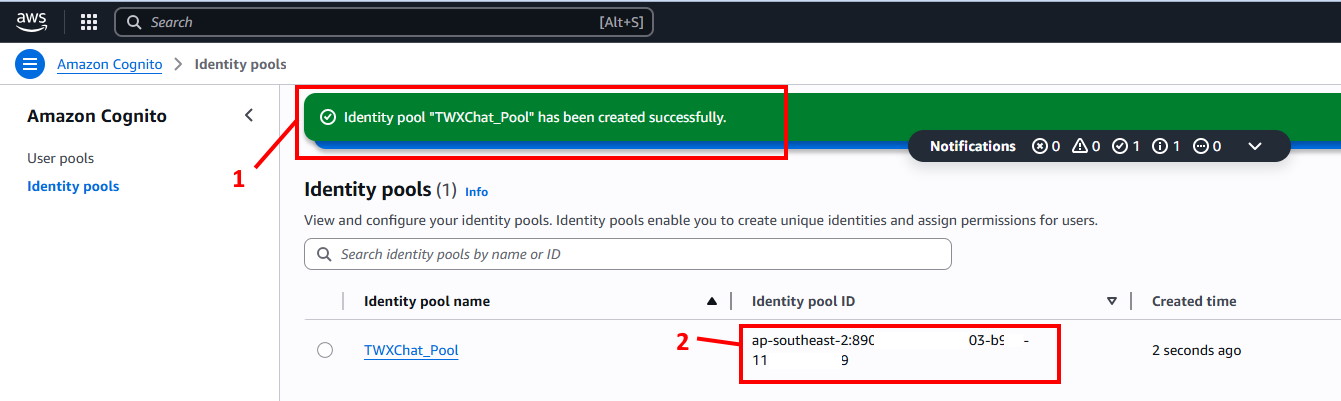
You will see that the Identity Pool has been created (1) and also the ‘Identity Pool ID’ (2) that you will use in the Plugin. Copy/Paste this into Word or Notepad for later use but keep it safe! - In the Search bar…
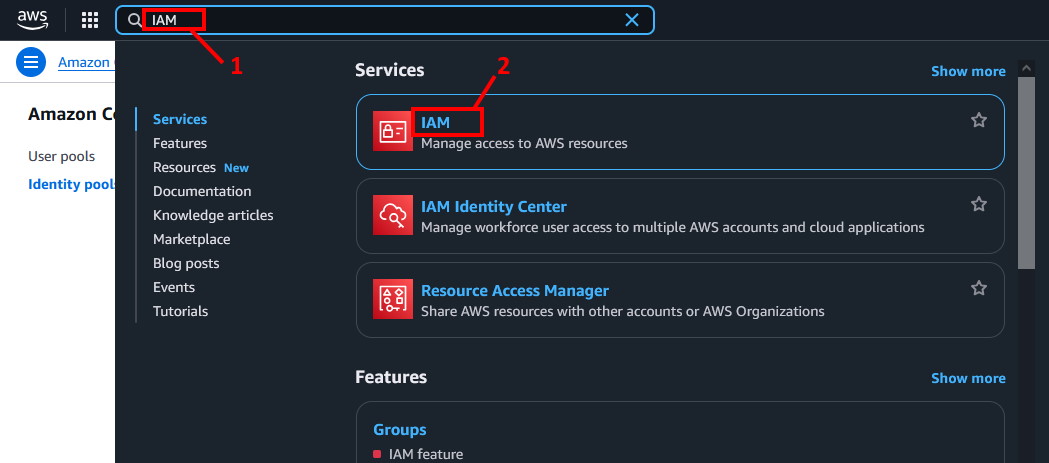
Enter ‘IAM’ (1) and select it from the Services (2). - In the next screen
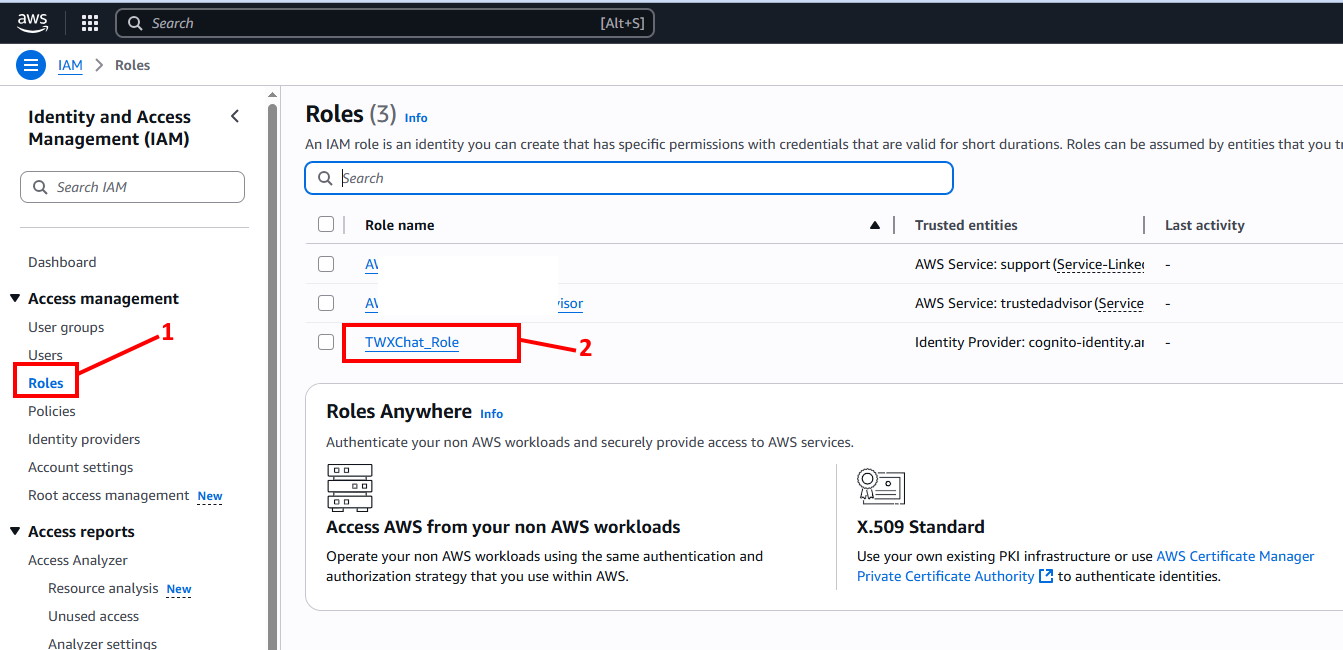
Select ‘Roles’ from the left menu (1) and click ‘TWXChat_Role’ (2). - In the next screen
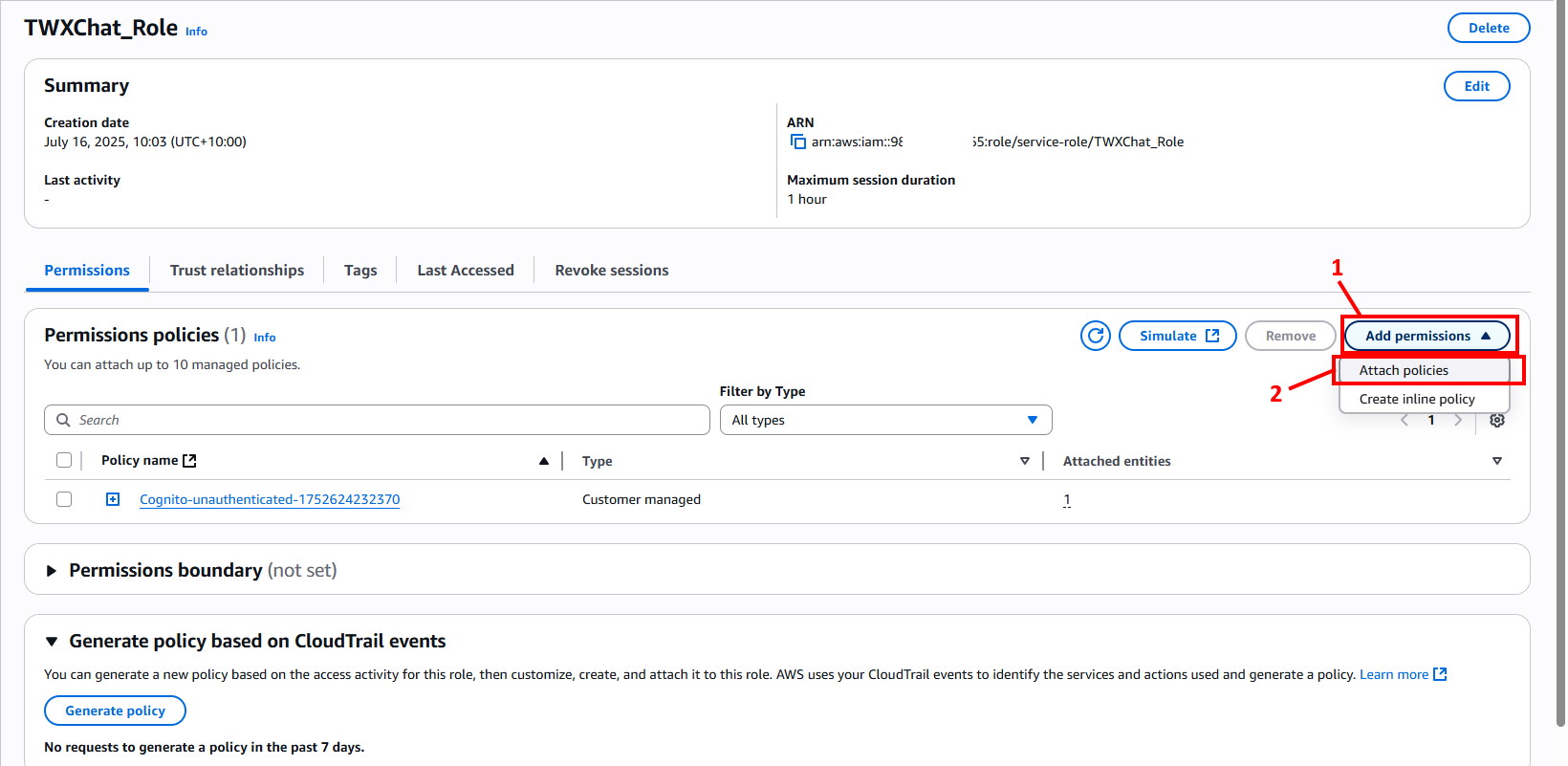
Select ‘Add Permissions’ on the right (1), then select ‘Attach Policies’ (2). - In the next screen
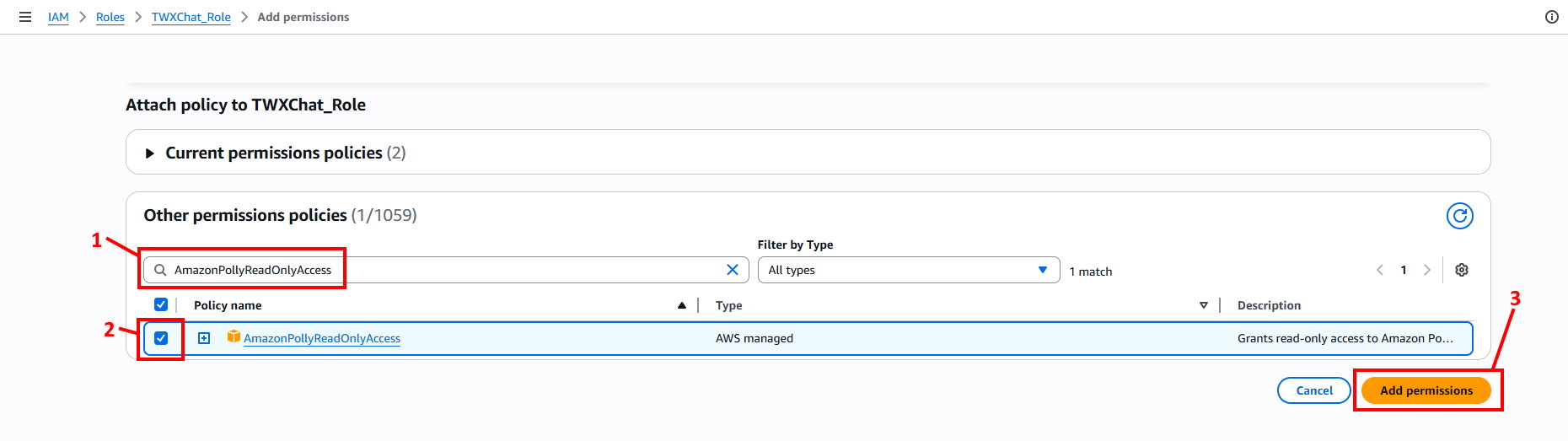
Enter ‘AmazonPollyReadOnlyAccess’ in the search area (1), then select the checkbox next to ‘AmazonPollyReadOnlyAccess’ in the results (2), then click ‘Add Permission’ (3). - In the next screen you will see the Policy has been added
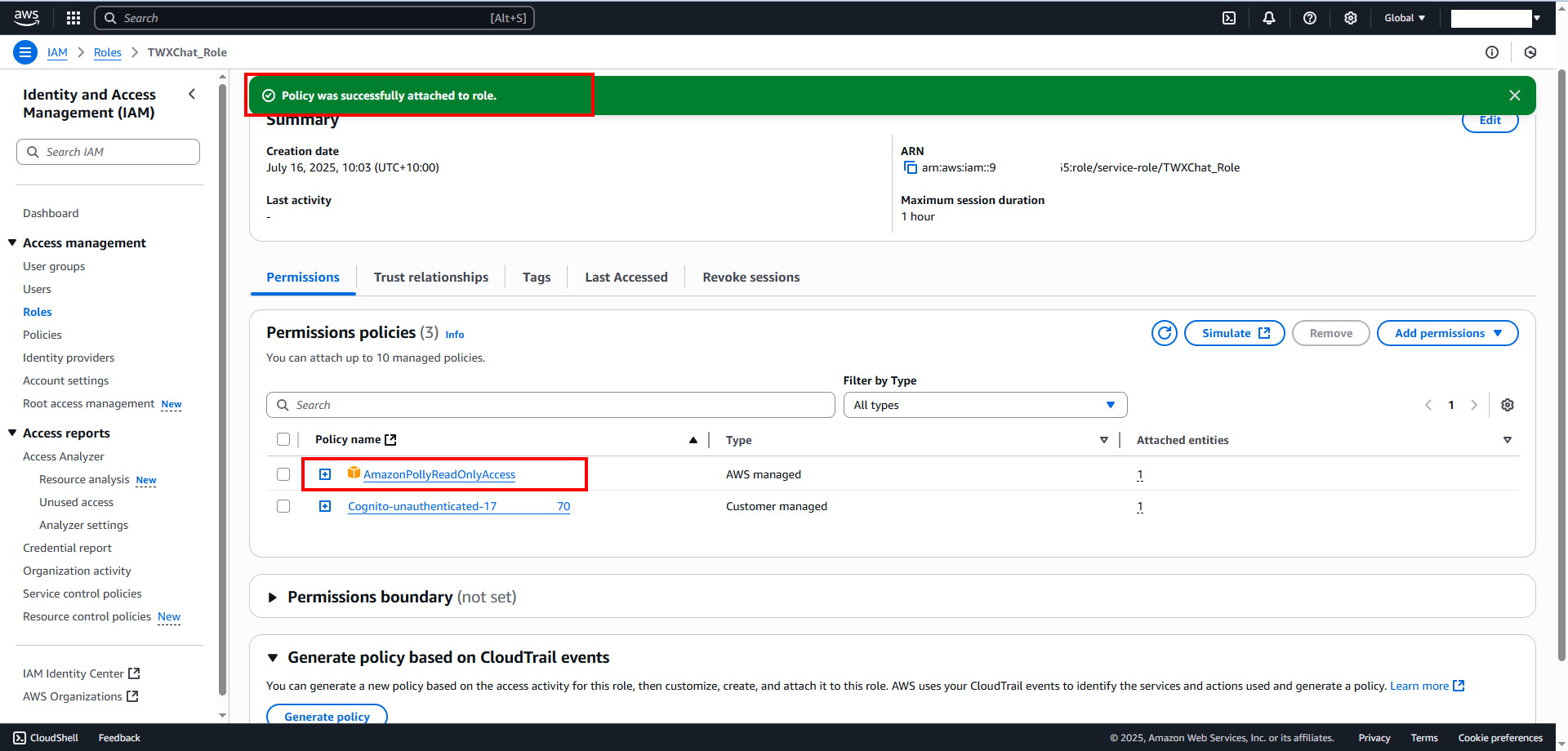
- THAT’S IT!! Now just paste the AWS ‘Cognito Pool Identity Key’ from Step 9 into the Plugin field (4) and click ‘Save Changes’.
NOTE: You can also visit Amazon’s own instruction page for this but it doesn’t have pretty screen shots 🙂